You have several options to start HSQL. I would choose from couple described below:
1. In process - by pointing out to local folder during creating DTP Connection Profile
2. Server - by starting it outside eclipse using command line and then create DTP Connection Profile with local server
In Process Option
If you use "in process" option you have to be aware that it is not enough just point out folder where your database is located in connection properties. You have to add one more segment to it with database name or your DB will be empty (see explanation below).
For example you have HSQL DB somewhere on disk with name "employee". Im my case I have it downloaded from here and just moved all files to local directory /home/eskimo/db/employee. So I have in this folder structure showed below (ignore employee.lck file it will be created after first "In process" start and not needed initially)

I assume you you have the same but you need to correct all paths "/home/eskimo/db/employee" and database name "employee" with yours real values.
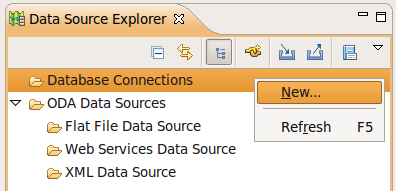
Then create "Database Connection" in DTP "Data Source Explorer" View by selecting "New..." from context menu on "Database Connections" node like
Then select "HSQLDB" connection type and enter DB name as "employee"

Then I assume you already have configured HSQL JDBC Driver and all what you need to do is enter database name again as "employee" and select its location. After that one magic step is needed (it could be DTP issue). Add one more segment "/employee" in "Database Location" like it shown below. Do not forget to clear "Connect when wizard completes" checkbox because it will start "In Process" HSQL after wizard is finished and create employee.lck file in your database folder. This file will be the reason Seam why Seam Entity Generation wizard will fail during execution. Use 'Optional' tab to define hsqldb.lock_file=false to fix this problem like it is shown below


Press Finish and check the "employee" node created under "Database Connections".
Now you're ready to create Seam Web project using "New Seam Web Project" wizard like it is shown below (it shows only first and last steps because all other steps I left unchanged with default values).

Then comes screens I left unchanged and finally you get to last one with seam configuration. You should have seam 2.1 configured and all what you need is to fill Database properties like it shown below and press "Finish".

After wizard is finished you should see two projects prj1 and prj1-test in your workspace. Now to be ready for entities reverse engineering from your database you need to be sure hsqldb.jar is available in your Server classpath container or in prj1/WebContent/WEB-INF/lib folder. If you don't have hsqldb.jar there "Generate Seam Entities" will fail with ClassNotFound Exception, because it will not be able to find HSQL JDBC driver class.
Now you're ready to go. Switch to Seam Perspective and select "Generate Seam Entiies" from context menu on prj1 project

Leave first step unchanged like it shown below and press "Next"

On second step press "Refresh" button and make sure it shows all tables form database as it shown below. If there are no tables most likely HSQL connection is not correctly configured. To generate Seam Entities and xhtml pages press "Finish".

You should get bunch of generated classes in source folder and pages in WebContent.
Server Option
You need to start HSQL as Server first using command line. Open console and change your directory to database directory like
$ cd /home/eskimo/db/employee
Then start HSQL server in Server Mode like
$java -cp /home/eskimo/Java/hsqldb/lib/hsqldb.jar org.hsqldb.Server
You should see output like
[Server@19106c7]: [Thread[main,5,main]]: checkRunning(false) entered
[Server@19106c7]: [Thread[main,5,main]]: checkRunning(false) exited
[Server@19106c7]: Startup sequence initiated from main() method
[Server@19106c7]: Loaded properties from [/home/eskimo/db/employee/server.properties]
[Server@19106c7]: Initiating startup sequence...
[Server@19106c7]: Server socket opened successfully in 8 ms.
[Server@19106c7]: Database [index=0, id=0, db=file:employee, alias=] opened sucessfully in 690 ms.
[Server@19106c7]: Startup sequence completed in 699 ms.
[Server@19106c7]: 2010-02-25 13:37:54.016 HSQLDB server 1.8.1 is online
[Server@19106c7]: To close normally, connect and execute SHUTDOWN SQL
[Server@19106c7]: From command line, use [Ctrl]+[C] to abort abruptly
It starts by default in silent mode. If you want to see what's going one just change property server.silent in server.properties file from true to false and your output will look like
[Server@34a1fc]: [Thread[main,5,main]]: checkRunning(false) entered
[Server@34a1fc]: [Thread[main,5,main]]: checkRunning(false) exited
[Server@34a1fc]: Startup sequence initiated from main() method
[Server@34a1fc]: Loaded properties from [/home/eskimo/db/employee/server.properties]
[Server@34a1fc]: [Thread[main,5,main]]: start() entered
[Server@34a1fc]: [Thread[HSQLDB Server @34a1fc,5,main]]: run() entered
[Server@34a1fc]: Initiating startup sequence...
[Server@34a1fc]: [Thread[HSQLDB Server @34a1fc,5,main]]: server.tls=false
[Server@34a1fc]: [Thread[HSQLDB Server @34a1fc,5,main]]: server.port=1701
[Server@34a1fc]: [Thread[HSQLDB Server @34a1fc,5,main]]: server.trace=false
[Server@34a1fc]: [Thread[HSQLDB Server @34a1fc,5,main]]: server.database.0=employee
[Server@34a1fc]: [Thread[HSQLDB Server @34a1fc,5,main]]: server.restart_on_shutdown=false
[Server@34a1fc]: [Thread[HSQLDB Server @34a1fc,5,main]]: server.no_system_exit=false
[Server@34a1fc]: [Thread[HSQLDB Server @34a1fc,5,main]]: server.silent=false
[Server@34a1fc]: [Thread[HSQLDB Server @34a1fc,5,main]]: server.default_page=index.html
[Server@34a1fc]: [Thread[HSQLDB Server @34a1fc,5,main]]: server.address=0.0.0.0
[Server@34a1fc]: [Thread[HSQLDB Server @34a1fc,5,main]]: server.dbname.0=
[Server@34a1fc]: [Thread[HSQLDB Server @34a1fc,5,main]]: server.root=.
[Server@34a1fc]: [Thread[HSQLDB Server @34a1fc,5,main]]: openServerSocket() entered
[Server@34a1fc]: [Thread[HSQLDB Server @34a1fc,5,main]]: Got server socket: ServerSocket[addr=0.0.0.0/0.0.0.0,port=0,localport=1701]
[Server@34a1fc]: Server socket opened successfully in 4 ms.
[Server@34a1fc]: [Thread[HSQLDB Server @34a1fc,5,main]]: openServerSocket() exiting
[Server@34a1fc]: [Thread[HSQLDB Server @34a1fc,5,main]]: openDatabases() entered
[Server@34a1fc]: [Thread[HSQLDB Server @34a1fc,5,main]]: Opening database: [file:employee]
[Server@34a1fc]: Database [index=0, id=0, db=file:employee, alias=] opened sucessfully in 696 ms.
[Server@34a1fc]: [Thread[HSQLDB Server @34a1fc,5,main]]: openDatabases() exiting
[Server@34a1fc]: Startup sequence completed in 701 ms.
[Server@34a1fc]: 2010-02-25 13:41:49.516 HSQLDB server 1.8.1 is online
[Server@34a1fc]: To close normally, connect and execute SHUTDOWN SQL
[Server@34a1fc]: From command line, use [Ctrl]+[C] to abort abruptly
[Server@34a1fc]: [Thread[main,5,main]]: start() exiting
Starting HSQL as Servers you should not worry about employee.lck anymore and can leave "Connect when wizard completes" checkbox selected during creating new HSQL Database Connection, but Database Location should be changed to hsql://localhost:1701 in second step of "New Database Connection" Wizard like

